Voice memos
Some Universities will offer podcasts of their lectures, most of them will put up slides, but something I've found quite useful are voice memos. So you take either a dictaphone or use the voice recording option on your phone (if you have one) or on an iPod/music device/tablet etc.
Tips for getting a good Voice memo;
1. The nearer you are to the person speaking or to a speaker (a lot of lecturers will speak into microphones) the better!
2. Point your device towards the speaker
3. Don't cough, try not to talk, just have it on in the background
4. Ask permission - you should really ask permission, but if you do make sure you can give them at least 3 good reasons as to why its imperative that you take a voice recording.
5. When you save it, give it a clear title - "Voice memo 1" is not going to tell you anything, even something as simple as PHOL will do, because usually the date is saved - from there its quite easy to work out which lecture your voice memo is referring to. (A better title is PHOL -L10, Muscle contraction or something that indicates the content of the memo)
Videos
During practicals, taking a video or what you're doing or the results can be quite handy, obviously ask the person's permission (which up until this point I have been dreadful at doing) and then make sure that everyone involved that wants a copy gets a copy - its only polite. If you're dissecting a corpse or something like that, don't video it or take pictures, be respectful - this is something one of our lecturers made quite clear.
Things to remember -
1. Make sure you aren't wearing gloves whilst holding your videoing device - the last thing you want is to transfer chemicals to your phone/iPod etc, which you then may place against your ear! Also don't put the device on the side, keep it in your pocket because again, during a practical if there are chemicals involved or biohazards its dangerous for you to put these devices near them.
2. Make sure your lecturer is okay with you videoing/using your phone/iPod in class. A good argument against it is that you will be distracted, so listen to the lecturer in charge and respect their instructions - its for your own safety!
3. If you can, give it a good title.
4. When you're watching it back make sure that anything said is appropriate and cut out comments that aren't, or thats are personal to some of the people recorded. Do this before you circulate the video.
5. Store the video in a suitable folder on your computer - yes upload it to the computer! That way you have another copy of it or you can delete it from your phone/iPod which will give you more space to record more. I store mine in the quite suitable Practicals folder.
Now I would upload a photo or video for an example, but seeing as I haven't asked permission to do so, I wont!
Showing posts with label Technology required. Show all posts
Showing posts with label Technology required. Show all posts
Tuesday, 18 November 2014

Cloud storage
The end of memory sticks?
Unlikely, but cloud storage is really handy! Especially for backing things up and being able to access your files on pretty much any device. Currently I have Dropbox, Google drive and iCloud. All of these are accessible on my iPod, I know you can get apps on android phones as well, one would assume that apps are available for various tablets and phones too.
Okay so I'll write what I know about different cloud storage sites, how much free storage you get and what I thought about it when I used it (if I did). These aren't in order of preference or anything. The one I use the most is Google drive, simply because I can make folders and 15GB of free storage is quite a lot. It works seamlessly with my Mac and my iPod and I can access my files really easily online.
1. iCloud - Apple
- 5GB of free storage
- use on Apple devices & via www.icloud.com
- really useful for finding lost apple devices
- useful for synced calendars across Apple devices, backing up contacts and accessing keynote, numbers etc on iPads/iPods/iPhones.
 2. Google drive - Google
- up to 15GB of free storage
- use on all devices, app available for use on phones/tablets, available from drive.google.com
- really useful for accessing files on the go, I use google drive for my notes so I can access previous notes in lectures (on my iPod) without lugging around my laptop or loads of paper.
- useful for organisation as different folders can be used, the content can be accessed anywhere with an internet connection and files can be accessed offline
- can be used for file sharing, you can share links to your photos/folders etc
- a folder is created on your computer
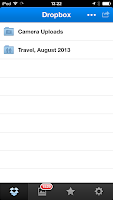
3. Dropbox - Independant
- up to 16GB of free storage (starts at 2GB, + 500MB
per referral), I currently have 3.25GB
- use on all devices, app available for use on phones/tablets, available from dropbox.com
- useful for sharing pictures with friends, can be quite slow to upload though
- a folder is created on your computer
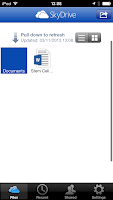 4. Skydrive - Microsoft
- up to 15GB of free storage
- use on all devices, app available for use on phones/tablets, available from skydrive.live.com
- will soon have a name change
- I don't really use this one so I don't have much info for you
Unlikely, but cloud storage is really handy! Especially for backing things up and being able to access your files on pretty much any device. Currently I have Dropbox, Google drive and iCloud. All of these are accessible on my iPod, I know you can get apps on android phones as well, one would assume that apps are available for various tablets and phones too.
Okay so I'll write what I know about different cloud storage sites, how much free storage you get and what I thought about it when I used it (if I did). These aren't in order of preference or anything. The one I use the most is Google drive, simply because I can make folders and 15GB of free storage is quite a lot. It works seamlessly with my Mac and my iPod and I can access my files really easily online.
1. iCloud - Apple
- 5GB of free storage
- use on Apple devices & via www.icloud.com
- really useful for finding lost apple devices
- useful for synced calendars across Apple devices, backing up contacts and accessing keynote, numbers etc on iPads/iPods/iPhones.
 2. Google drive - Google
- up to 15GB of free storage
- use on all devices, app available for use on phones/tablets, available from drive.google.com
- really useful for accessing files on the go, I use google drive for my notes so I can access previous notes in lectures (on my iPod) without lugging around my laptop or loads of paper.
- useful for organisation as different folders can be used, the content can be accessed anywhere with an internet connection and files can be accessed offline
- can be used for file sharing, you can share links to your photos/folders etc
- a folder is created on your computer
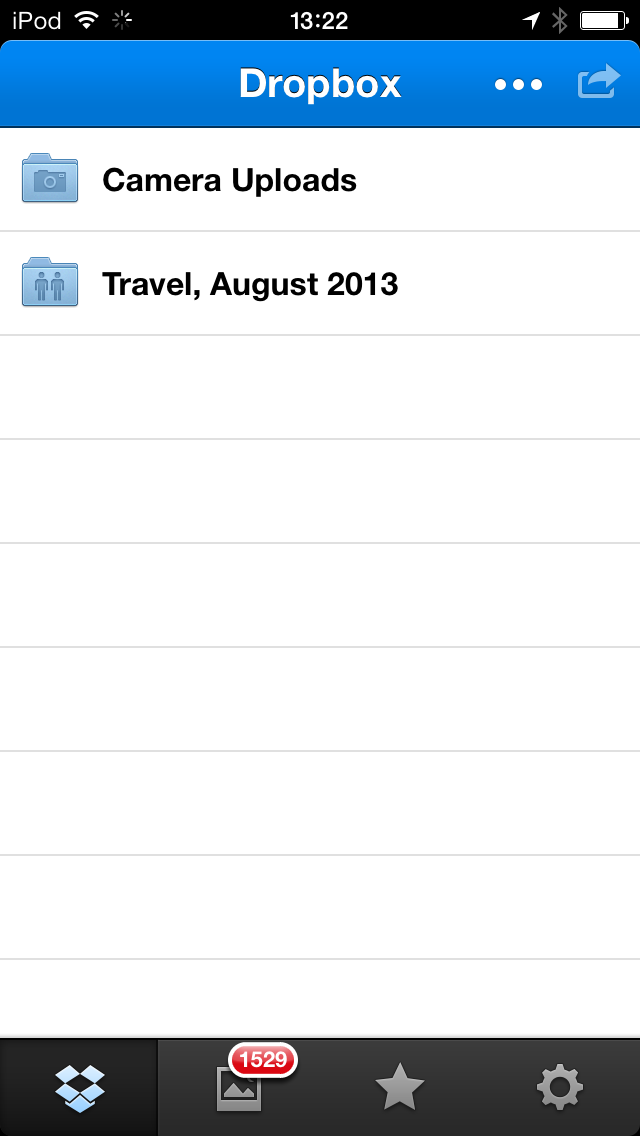
3. Dropbox - Independant
- up to 16GB of free storage (starts at 2GB, + 500MB
per referral), I currently have 3.25GB
- use on all devices, app available for use on phones/tablets, available from dropbox.com
- useful for sharing pictures with friends, can be quite slow to upload though
- a folder is created on your computer
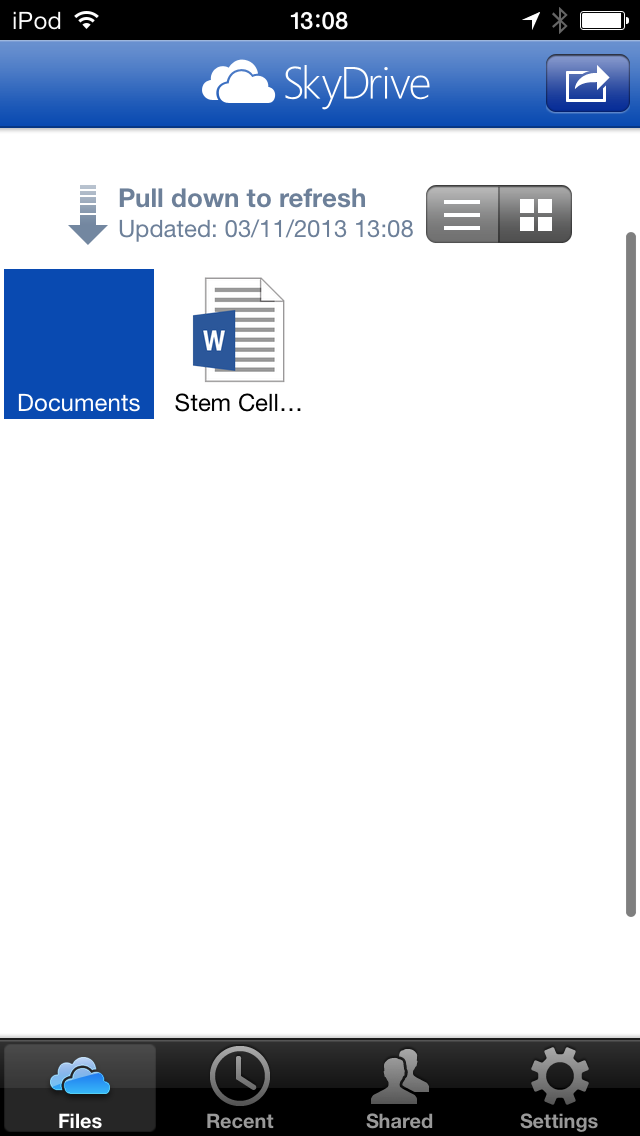 4. Skydrive - Microsoft
- up to 15GB of free storage
- use on all devices, app available for use on phones/tablets, available from skydrive.live.com
- will soon have a name change
- I don't really use this one so I don't have much info for you
Monday, 4 November 2013
Digital Flash cards
Now, I don't know whether this kind of app is available on all computers e.g. Google laptops, Microsoft etc, but it is available on my Mac, so I'm going to talk about it!
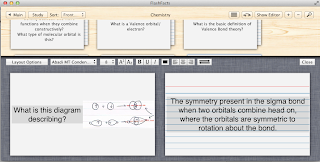 I have an app (which I paid about £2.50 for, so think before you buy!!!) called FlashFacts, if you searched for flashcard apps in the app store, I'm 100% positive that you would find a similar sort of version for FREE. In fact, just go find a free version, we're students we like free things.

There are loads of online sites out there as well, not just apps
 I have an app (which I paid about £2.50 for, so think before you buy!!!) called FlashFacts, if you searched for flashcard apps in the app store, I'm 100% positive that you would find a similar sort of version for FREE. In fact, just go find a free version, we're students we like free things.
Anyway, I'll talk about revision card apps in general, but any print screens will have come from FlashFacts.
Online/digital flash cards are useful because;
- they don't use up paper
- on some you can add voice recordings/videos
- you can add pictures without printing them
- they take less time to write (I think a lot of people type faster than they write)
- they will record how many you get right
- you can organise them into subjects/modules/topics etc
- for some you can store them on iCloud or other cloud storage and access them via a mini version of the app on your phone or tablet - this means revision cards on the go but not taking up loads of space in a bag etc.
- if you scan in your notes, you can use your own diagrams or pictures
Heres an example of what you can do with online flashcards;

- studyblue
- quizlet
- studystack
- flashcardmachine
If you literally just google (or bing...) online flashcards, or you type in flashcards into an app search then something will come up!
Sunday, 3 November 2013
The Bookmarks bar
Okay so its not just your paperwork, folders and notes that can be organised, you should also look into keeping your bookmarks bar organised as well.
Why?
1. You will most likely come across useful sources, but you may not need them straight away - saving them in a logical folder with a suitable file name will make tracking it down easier (same for referencing).
2. You may come across useful revision sources or quizzes to do, same reason as above really
3. You need to have a divide between Uni and Personal, so you don't want a bunch of science articles mixed with websites on sports competitions mixed with social event pages all in one bookmark. This makes it difficult to find anything.
Tips for keeping your bookmarks bar understandable;
1. Keep it simple, its much easier to have lots of separate folders than have a folder within a folder etc. I know from experience that having to click through to find the relevant sub-folder etc is time consuming and quite often I don't get there. For example
- University
- PHAR1001
- Practicals
- Articles
- PHOL1001
- Practicals
- Articles
- BIOC1001
- Practicals
- Articles
- CHEM1603
- Practicals
- Articles
Clubs/EC
- Tennis
- Swimming
- SW competitions
Important
- Job vacancies
- Finance enquiries etc.
Other
Ideally you wouldn't even have the sub-sections of Practicals and Articles, you would just include this information in the title - which you need to make sure is REALLY obvious. Don't bother just saving the link because in 2 weeks time when you remember that you found a really interesting article on cocaine's use in breaking the blood brain barrier, you wont be able to find it!
Keep the "Other" folder for anything that isn't education related, so its not massively important that you know what its called, where it is etc, because having to accurately describe a web-page every time you save a new favourite is just plain annoying (well for me anyway), so instead just prioritise the University links as having to be organised.
Okay so below I have an example of how NOT to do it and how to do if fairly well;
 Okay, so here is what my University bookmark used to look like, I have "New folder"s in there, things that don't belong in that folder are there - like shopping items, half of the names are confusing or not really helpful, basically I wouldn't have a clue where anything was.

This is a much better example, what my work folder used to look like - so you can see that the folders have suitable names, there are subfolders and then the names of the links are understandable as well, so if I wanted the MSDS (material safety data sheet) of Sodium nitrite from Fisher then I would know which link to click on.
Why?
1. You will most likely come across useful sources, but you may not need them straight away - saving them in a logical folder with a suitable file name will make tracking it down easier (same for referencing).
2. You may come across useful revision sources or quizzes to do, same reason as above really
3. You need to have a divide between Uni and Personal, so you don't want a bunch of science articles mixed with websites on sports competitions mixed with social event pages all in one bookmark. This makes it difficult to find anything.
Tips for keeping your bookmarks bar understandable;
1. Keep it simple, its much easier to have lots of separate folders than have a folder within a folder etc. I know from experience that having to click through to find the relevant sub-folder etc is time consuming and quite often I don't get there. For example
- University
- PHAR1001
- Practicals
- Articles
- PHOL1001
- Practicals
- Articles
- BIOC1001
- Practicals
- Articles
- CHEM1603
- Practicals
- Articles
Clubs/EC
- Tennis
- Swimming
- SW competitions
Important
- Job vacancies
- Finance enquiries etc.
Other
Ideally you wouldn't even have the sub-sections of Practicals and Articles, you would just include this information in the title - which you need to make sure is REALLY obvious. Don't bother just saving the link because in 2 weeks time when you remember that you found a really interesting article on cocaine's use in breaking the blood brain barrier, you wont be able to find it!
Keep the "Other" folder for anything that isn't education related, so its not massively important that you know what its called, where it is etc, because having to accurately describe a web-page every time you save a new favourite is just plain annoying (well for me anyway), so instead just prioritise the University links as having to be organised.
Okay so below I have an example of how NOT to do it and how to do if fairly well;


This is a much better example, what my work folder used to look like - so you can see that the folders have suitable names, there are subfolders and then the names of the links are understandable as well, so if I wanted the MSDS (material safety data sheet) of Sodium nitrite from Fisher then I would know which link to click on.
The Computer files
As I noted in last months lot of posts, I tend to scan my notes in, this means that I quite often have a lot of files on my computer, just like paper notes my online notes need to be kept organised as well so I can find them easily!
I have a lot of folders, but you only need a few to keep your files structured and orderly, this is what I suggest;
Documents
- University
- Year 1 (I also have Year 2 and 3 set up)
- Modules (eg PHAR1001, CHEM1603)
Practicals (includes data, videos, lab scripts, scans of answers I've written)
Diagrams (cropped diagrams from my notes which I used for flash cards)
Articles (science advancements, info for essays/reports/lab scripts if needed)
Sections (for notes e.g. Section A - Bonding, Section B - Local Anaesthetics)
Currently (as you can see below) I don't have a folder for articles seeing as I don't have any yet, most of the articles I've seen have been online and thus saved to my bookmarks bar.
TITLES
The main thing when it comes to organising files is to give things a proper title. Yes, I know that means no more "dlojhgklrn.docx" or "essaydue13thdec.docx" but if you have a proper title then it saves time in the long run, you don't have to look through every document you have saved to find the one you need (although you could do a search for when you created/last edited it).
As far as scanning notes goes, I tend to have a set format for the title, as you can see Section A files start with A, then the title of the lecture and then the lecture number. I'll probably swap the lecture number and section letter around though. These things can be tried, tested and improved on!
Other folders;
I also have a
Work folder - CV, cover letter template, reference addresses/contacts, old work contracts, etc
Finance - which currently has nothing in to be honest
Travel - excel spreadsheets, maps, ideas, etc for travelling, insurance docs,
Other - because I don't like it when files don't have a folder...

I have a lot of folders, but you only need a few to keep your files structured and orderly, this is what I suggest;
Documents
- University
- Year 1 (I also have Year 2 and 3 set up)
- Modules (eg PHAR1001, CHEM1603)
Practicals (includes data, videos, lab scripts, scans of answers I've written)
Diagrams (cropped diagrams from my notes which I used for flash cards)
Articles (science advancements, info for essays/reports/lab scripts if needed)
Sections (for notes e.g. Section A - Bonding, Section B - Local Anaesthetics)
Currently (as you can see below) I don't have a folder for articles seeing as I don't have any yet, most of the articles I've seen have been online and thus saved to my bookmarks bar.
TITLES
The main thing when it comes to organising files is to give things a proper title. Yes, I know that means no more "dlojhgklrn.docx" or "essaydue13thdec.docx" but if you have a proper title then it saves time in the long run, you don't have to look through every document you have saved to find the one you need (although you could do a search for when you created/last edited it).
As far as scanning notes goes, I tend to have a set format for the title, as you can see Section A files start with A, then the title of the lecture and then the lecture number. I'll probably swap the lecture number and section letter around though. These things can be tried, tested and improved on!
Other folders;
I also have a
Work folder - CV, cover letter template, reference addresses/contacts, old work contracts, etc
Finance - which currently has nothing in to be honest
Travel - excel spreadsheets, maps, ideas, etc for travelling, insurance docs,
Other - because I don't like it when files don't have a folder...

Thursday, 31 October 2013
The Scanner
My printer (Brother) is a photocopier and scanner as well and I can tell you that the scanning part is SO USEFUL.
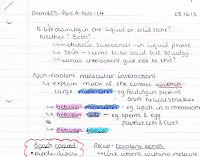 1. Storing notes - if you write notes on paper (like I do) you can scan them in once you've written them up and before they go in the module folders. This way you have an electronic copy of them. Now if you use some sort of cloud storage device - Skydrive, iCloud, Google drive (the one I use), Dropbox etc, you can have your notes accessible anywhere. So if you have a tablet, you can access them on there, if you leave you need to see your notes whilst you're home for the holidays you can see them on your computer rather than having to take them all with you. (Assuming you work or revise over christmas of course).
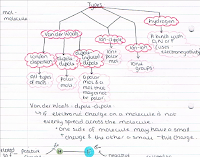 3. Revision materials - in my course we have to learn a lot of processes, which involve diagrams and different steps. In my notes I quite often draw out really detailed diagrams and when it comes to revision it can take time to do it again. However if you scan in your notes or photocopy them, you can have another copy of the diagrams which can be cut up and mounted on card - for flashcards, snap games, matching the description to the picture etc. That way you spent a lot less time rewriting things onto card and can spend more time actually going through the material.
Let me tell you why.
 1. Storing notes - if you write notes on paper (like I do) you can scan them in once you've written them up and before they go in the module folders. This way you have an electronic copy of them. Now if you use some sort of cloud storage device - Skydrive, iCloud, Google drive (the one I use), Dropbox etc, you can have your notes accessible anywhere. So if you have a tablet, you can access them on there, if you leave you need to see your notes whilst you're home for the holidays you can see them on your computer rather than having to take them all with you. (Assuming you work or revise over christmas of course).
2. Labs - quite often you will have to write a practical report and then submit it, it may take a while to get back and in some cases (mine for example) I haven't been given them back, but I'd really like a copy, so what I do is just scan them, then I have a copy for myself and can submit the original for marking.
 3. Revision materials - in my course we have to learn a lot of processes, which involve diagrams and different steps. In my notes I quite often draw out really detailed diagrams and when it comes to revision it can take time to do it again. However if you scan in your notes or photocopy them, you can have another copy of the diagrams which can be cut up and mounted on card - for flashcards, snap games, matching the description to the picture etc. That way you spent a lot less time rewriting things onto card and can spend more time actually going through the material.
Subscribe to:
Posts (Atom)