Wednesday, 20 November 2013

Tablet note taking

So I have ventured into the art of tablet note taking (taking electronic notes on a tablet, just in case you were unclear).

Paper Vs Tablet 

 Personally, I prefer paper. Simply because I can write so much faster on paper than on an iPad. I have colours, rubber, sharpener, glue etc to make my notes personal. However you can also have these options on electronic notes now. I n some cases there are 64+ colours to choose from (more than I have in pencil form), you can add photographs, graphs, etc and keep them all on a very easy to transport tablet. For me though, tablets are just harder to write on, I like to lean on my paper and tilt it to the side so that its almost landscape (yet I still write portrait), which is difficult when you're using a tablet because quite often (assuming you forget to turn on the lock option) it will correct itself when its turned on its side, also you will quite often end up confusing the touch screen if you lean on it. Also I'm a little weird and I like the feel of paper so for now I wont be saving any rain forests by using a tablet to take my notes on (though I am saving electricity!), but I do promise to recycle them at the end.

Note taking apps

Obviously most tablets will have some sort of notes program where you just type in what you want, so I'm going to focus on the apps available where you can write with a stylus, add pictures, use colours etc. I'll include some examples of what you can do with the ones I've tried, what I think about each of them.

So upon receiving my fancy new iPad (its really pretty I'm not going to lie), I decided to download 4 free "Notes" apps. All of these are FREE (we're students after all!) though most of them have a catch e.g. adds or you can only have 2 notebooks, but you can work with that.

1. Penultimate
2. GoodNotes
3. TopNotes
4. InkFlow

Penultimate - ***
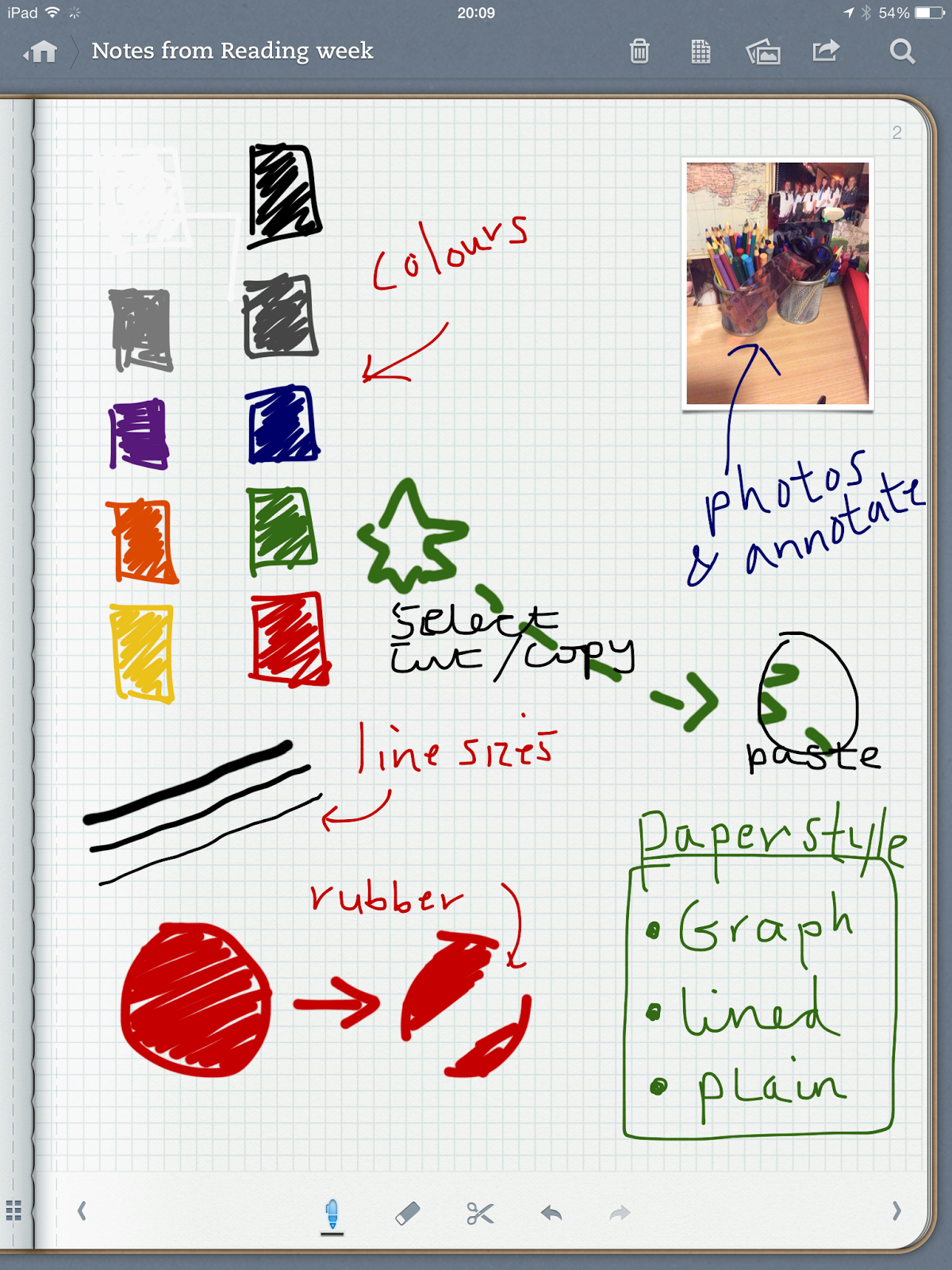
Main pro - 10 colours available, easy to use, unlimited (?) notebooks (part of "evernote" so notes are accessible online anywhere)

 Main con - difficult to write

Features available; 10 different pen colours, 3 line sizes, one size rubber, select/copy/cut/paste/move, graph, lined or plain paper, add and annotate images (also resize them), different notebooks available


GoodNotes - ****
Main pro - loads of colours to choose from you can zoom in on an area you wish to write on so you can write really large but it will resize it for you. You can choose from plain, ruled, squared, music or the landscape alternatives.

Main con - you can only have 2 notebooks, there are adds at the bottom, an upgrade costs £3.99 (currently)

Features available: Custom colours and line sizes, 3 rubber sizes, 5 highlighter colours with custom sizes, shapes and images can be added, select/copy/cut/paste/move, text boxes can be added, different notebooks/folders available.


TopNotes - *****
Main pro - wrist option, different coloured notebooks, password protection, custom colours and sizes, 4 styles of writing instrument - pen, pencil, fountain pen & highlighter (4 colours)

Main con - massive add on homepage (currently can't access upgrade info due to no wifi...)

Features available: wrist option - so you can lean on the tablet (as you would paper) without drawing anything or messing it up, custom colours for pens, custom sizes for pens, 4 instrument styles - pencil, pen, fountain pen and highlighter, highlighters have 4 colours and customer sizes, select/cut/copy/paste/move/delete items, add images, 3 rubber sizes, different colour papers available (white/yellow), loads of different styles of paper - lined, plain, checklist, graph paper (3 different sizes), note paper (with margin), lined with space for a picture, dotted, you can add a password to each notebook (4 digit), different colour notebook covers e.g. red, green, spotty, custom (your own image).


InkFlow - *
Main pro - you can add text to the page and there are 4 fonts available

Main con - you don't get much unless you upgrade

Features available: text boxes with 4 fonts, resize selections, add images which can be converted to black and white (you can also add a border).


You can probably tell that TopNotes is my favourite, however the GoodNotes resizing text feature is incredibly useful, as I find it difficult to write neatly, accurately and quickly on an iPad using a stylus the GoodNotes app sorts this out very well for me.


SNAPSHOTS OF EACH APP WILL BE ADDED SOON! 

Monday, 4 November 2013

Digital Flash cards

Now, I don't know whether this kind of app is available on all computers e.g. Google laptops, Microsoft etc, but it is available on my Mac, so I'm going to talk about it!


I have an app (which I paid about £2.50 for, so think before you buy!!!) called FlashFacts, if you searched for flashcard apps in the app store, I'm 100% positive that you would find a similar sort of version for FREE. In fact, just go find a free version, we're students we like free things. 


Anyway, I'll talk about revision card apps in general, but any print screens will have come from FlashFacts. 

Online/digital flash cards are useful because; 

- they don't use up paper 
- on some you can add voice recordings/videos 
- you can add pictures without printing them 
- they take less time to write (I think a lot of people type faster than they write)
- they will record how many you get right 
- you can organise them into subjects/modules/topics etc 
- for some you can store them on iCloud or other cloud storage and access them via a mini version of the app on your phone or tablet - this means revision cards on the go but not taking up loads of space in a bag etc. 
- if you scan in your notes, you can use your own diagrams or pictures 

Heres an example of what you can do with online flashcards; 

 There are loads of online sites out there as well, not just apps
- studyblue 
- quizlet 
- studystack 
- flashcardmachine 


If you literally just google (or bing...) online flashcards, or you type in flashcards into an app search then something will come up! 

Sunday, 3 November 2013

The Bookmarks bar

Okay so its not just your paperwork, folders and notes that can be organised, you should also look into keeping your bookmarks bar organised as well.

Why?
1. You will most likely come across useful sources, but you may not need them straight away - saving them in a logical folder with a suitable file name will make tracking it down easier (same for referencing).

2. You may come across useful revision sources or quizzes to do, same reason as above really

3. You need to have a divide between Uni and Personal, so you don't want a bunch of science articles mixed with websites on sports competitions mixed with social event pages all in one bookmark. This makes it difficult to find anything.


Tips for keeping your bookmarks bar understandable;

1. Keep it simple, its much easier to have lots of separate folders than have a folder within a folder etc. I know from experience that having to click through to find the relevant sub-folder etc is time consuming and quite often I don't get there. For example
- University
     - PHAR1001
          - Practicals
          - Articles
     - PHOL1001
          - Practicals
          - Articles
     - BIOC1001
          - Practicals
          - Articles
     - CHEM1603
          - Practicals
          - Articles
Clubs/EC
      - Tennis
      - Swimming
      - SW competitions
Important
      - Job vacancies
      - Finance enquiries etc.

Other

Ideally you wouldn't even have the sub-sections of Practicals and Articles, you would just include this information in the title - which you need to make sure is REALLY obvious. Don't bother just saving the link because in 2 weeks time when you remember that you found a really interesting article on cocaine's use in breaking the blood brain barrier, you wont be able to find it!

Keep the "Other" folder for anything that isn't education related, so its not massively important that you know what its called, where it is etc, because having to accurately describe a web-page every time you save a new favourite is just plain annoying (well for me anyway), so instead just prioritise the University links as having to be organised.

Okay so below I have an example of how NOT to do it and how to do if fairly well;

 Okay, so here is what my University bookmark used to look like, I have "New folder"s in there, things that don't belong in that folder are there - like shopping items, half of the names are confusing or not really helpful, basically I wouldn't have a clue where anything was.

This is a much better example, what my work folder used to look like - so you can see that the folders have suitable names, there are subfolders and then the names of the links are understandable as well, so if I wanted the MSDS (material safety data sheet) of Sodium nitrite from Fisher then I would know which link to click on.

The Computer files

As I noted in last months lot of posts, I tend to scan my notes in, this means that I quite often have a lot of files on my computer, just like paper notes my online notes need to be kept organised as well so I can find them easily!

I have a lot of folders, but you only need a few to keep your files structured and orderly, this is what I suggest;

Documents
   - University
        - Year 1 (I also have Year 2 and 3 set up)
              - Modules (eg PHAR1001, CHEM1603)
                      Practicals (includes data, videos, lab scripts, scans of answers I've written)
                      Diagrams (cropped diagrams from my notes which I used for flash cards)
                      Articles (science advancements, info for essays/reports/lab scripts if needed)
                      Sections (for notes e.g. Section A - Bonding, Section B - Local Anaesthetics)

Currently (as you can see below) I don't have a folder for articles seeing as I don't have any yet, most of the articles I've seen have been online and thus saved to my bookmarks bar.

TITLES
    The main thing when it comes to organising files is to give things a proper title. Yes, I know that means no more "dlojhgklrn.docx" or "essaydue13thdec.docx" but if you have a proper title then it saves time in the long run, you don't have to look through every document you have saved to find the one you need (although you could do a search for when you created/last edited it).

As far as scanning notes goes, I tend to have a set format for the title, as you can see Section A files start with A, then the title of the lecture and then the lecture number. I'll probably swap the lecture number and section letter around though. These things can be tried, tested and improved on!


Other folders;
I also have a

Work folder - CV, cover letter template, reference addresses/contacts, old work contracts, etc
Finance - which currently has nothing in to be honest
Travel - excel spreadsheets, maps, ideas, etc for travelling, insurance docs,
Other - because I don't like it when files don't have a folder...


Thursday, 31 October 2013

The Bedside Bowl & Bag

Next to my bed (on a bedside table whenever possible) I have a bowl, a very important bowl because this is where I put the small things that I need for the day ahead. My phone and iPod are always on charge so they aren't in the bowl, but the other items include;

1. Keys
2. Swipe card for my accommodation
3. University ID card
4. Hair pins & hairbands - which I wear on my wrist every day
5. Any reminders of things to remember to do that day

    There are two main benefits to this bowl existing, the first is that every morning I know exactly where everything I need is for the day ahead, I never have to rummage in my bag, or worry about leaving my keys behind. The second is that I can quickly grab these items in the event of a fire alarm sounding. If its a drill, I'll need my keys and swipe card to get back into my flat. Oh and a third benefit is that if you oversleep you can just grab and go.

    I also keep a bag prepared for each day, there are certain things I ALWAYS keep in there (every season, every weather type, every day).

1. Plasters - including a few blister plasters
2. Brolly!! (really important if you live in the UK)
3. Pen
4. Some form of paper - receipt, note pad, sticky notes, basically anything you can write on
5. headphones - they just stay in a small pocket
6. Hair pins/hair band
7. Spare bag (one of those tiny fold up shopping bag ones) - incase the bag breaks, for shopping etc


Once we're into April (until ~ Sept 1st) I also carry suncream with me (I burn horrifically, so if you're normal skinned I'd say around May/June). Between about March and October I carry sunglasses. From about November until April I also carry gloves.

When it comes to term time, thats where "The To and From folder" lives.

The Timetable

Hopefully your University is incredibly organised and provides you with a very comprehensible, easy to understand timetable. Mine, I despair to admit, does not*. This prompted me to make my own, which I'm really rather happy with. A picture of one of the weeks in my timetable will be posted here.

Timetable 
1. Create a table in Word, 10 Columns, 6 Rows (8 if you include Sat/Sun)
2. Split the columns into timings. I went for hourly from 9am until 6pm 
3. Split the rows into days - just the day (not the date)
4. Add a "Week:" option down the bottom. 
5. Add in, electronically, all of the lectures that happen at specific times every single week. Anything that happens every 2 weeks, or irregularly shouldn't be added at this stage. 
6. Print it. Print enough copies to have one per week for the first term at least. 

Now, the boring part; 
Add in - 
1. Practicals (unless they're every single week on the same day at the same time
2. Deadlines
3. Tutorials 
4. Sports activities/hobbies
5. Personal events - booked holidays, trips home, parties you've agreed to 
6. Exams/tests 

Now the "fun" part; 
Add a colour scheme, with different indications for each time of event listed above. For mine I have - 
- Full, block line = lecture 
- Dash line = practical 
- Just the corners = tutorial 
- Lines going across the box = exam/test
- Lines going across the box with grey and a dashed border - deadline 
- Cross through it - cancelled 

I should also mention that each module has a different colour 
PHOL - green, CHEM - red, PHAR - orange, BIOC - blue, personal - pink

Do this for every week, if you know where the lecture is going to be then write it in, if you're like me and your university has a tendency to change locations then just leave it blank. 


*Well they do, but its not very good, rather confusing and includes lots of irrelevant stuff. 

Notes

Probably the most important thing when it comes to staying organised at University - how to take notes, how to label notes, how to use them etc.

My top tips for notes;

1. ALWAYS write the course code and the date at the top of the page, of every page, every single one. This is so useful in terms of organisation, you don't need much more than that. For me I write;
Course code, topic/section, lecturer, lecture number, date for example
PHAR1001: Local Anaesthetics, Smart, L4    17.10.13
or CHEM1603: Part B, McMillan, L7     23.10.13
One of the easiest things to do with a piece of paper is to misplace it, lose it, or put it in a random place and then find it again. You look at the content and you have no idea where you lost it from, what lecture it came from, when it was (was it this year? last year?), you have no idea where it belongs but if you label your notes then you will always be able to know whats missing or where it goes.

2. PAGE NUMBER - on every page in a lecture I write the number in the top right hand corner. Just a simple 1 or 2, by that I mean 2 would be the second sheet of paper rather than the 2nd side of 1 piece of A4.

3. If the lecturer is going too fast and you miss something, skip it. Don't bother trying to write it down and thus miss the next part of the lecture, just put an arrow in the margin indicating that you need to finish this section of notes, leave enough space and then move on to the next part.

4. Have an indication of important information. For me, I draw a star by anything the lecturer says is important, e.g. when a lecturer says "this would make really good exam material" bam, a star gets drawn next to it. Its easy to look through your notes and know whats really important if you indicate it when you first write about it.

5. If you can - keep an eye on what number slide the lecturer is on, to go with number 3 its useful to know the slide number. Most power points are put up on some sort of platform for you to access if you missed the lecture (if they're put up before its useful to read through them or print them out).

6. Mix up the page a bit. You don't have to write in an essay format, mix up the page, use columns, circle information, put info in a box, draw diagrams, use arrows, add colour, draw a border around sections, split the page up into strange shapes, make it interesting for yourself. Use bullet points or arrows to show the flow of an argument. Split long sentences into key words, the last thing you want is for your notes to look like a textbook because how many of us love reading textbooks with no colour, pictures or anything remotely interesting?

Those are my top tips for now, hopefully something slightly different to what you've been taught already (theres no point repeating something you probably already know).